Feature · Drag and drop
A drag and drop task manager that restructures with you.
Plans change. In F4Goals you reorder a task, re-parent it or move it to another project by dragging it, and the list reflows around it.
No card · Web + Android

Restructuring should not mean retyping
The first version of a plan is almost never the right one. A step that looked small turns out to be a project; two tasks belong under the same heading; one task was filed in the wrong project. In a tool where moving things means deleting and recreating them, people leave the structure wrong because fixing it is annoying.
F4Goals makes the structure cheap to change. You pick a task up and put it where it belongs.
What you can drag
Everything is a task, so everything can be moved, and what it carries moves with it.
Reorder: drag a task up or down within its list to change the order you will work in.
Re-parent: drop a task under a different parent to turn it into a subtask, or drag a subtask out to make it a top-level task.
Move between projects: drag a task into another project.
Take the branch with you: a task’s subtasks and their progress travel with it.
Before and after a drag: building a website
Launch my portfolio
45%
Pick a domain and hosting
100%
Design
50%
Build the layout
50%
Deploy and share
0%
Dragging “Build the layout” under “Design” turns it into a subtask of Design, and keeps its own progress.
How it feels
Grab the handle at the left of a task, then drag. The row lifts while you drag it; let go over the place you want it and it settles there. If the task moved to another project, the project percentages update.
The same gesture works with a mouse on the web and with a finger in the Android app, so you build the habit once.
Drag and progress live side by side
Sliding a task sideways sets its progress, and dragging it vertically moves it. The two gestures are deliberately on different axes, so setting a percentage never moves a task and moving a task never changes a percentage.
Because progress stays on the task, restructuring is safe: move a half-finished task under a new parent and it keeps its percentage, with nothing to recalculate by hand.
Dragging versus sliding
Two gestures do two different jobs, and they are kept apart on purpose. Sliding a row sideways sets how far along the task is. Dragging the handle at the left of the row moves the task. A short, accidental touch on the handle does not pick the task up, because the drag only starts once you have moved a few pixels.
That separation matters on a phone. You can scroll the list with your thumb, slide a task to update it, and drag a task to move it, without one of those turning into another.
Tips for reorganising a plan
Put the order you will actually work in at the top, so the first visible task is the next thing to do. Group tasks that share a goal under one parent and collapse it. When a task keeps being postponed, drag it up and break it down rather than leaving it at the bottom.
If you are unsure how to structure something, throw everything in as top-level tasks first, then drag related ones together. Sorting is faster than planning the structure in advance.
F4Goals on Android
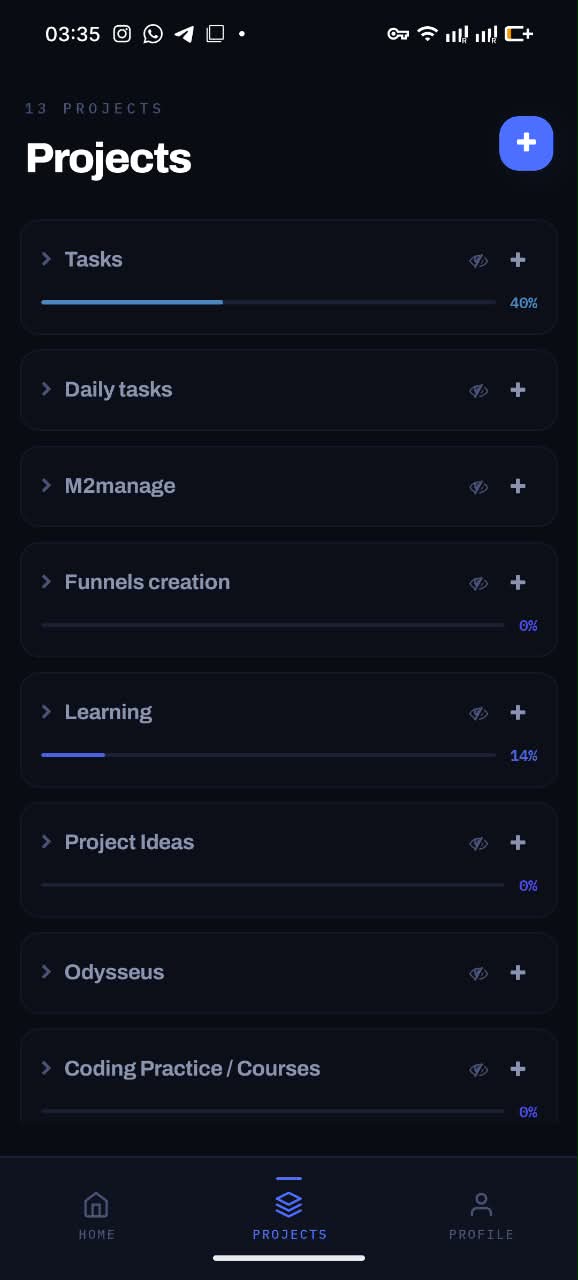
Projects with live progress
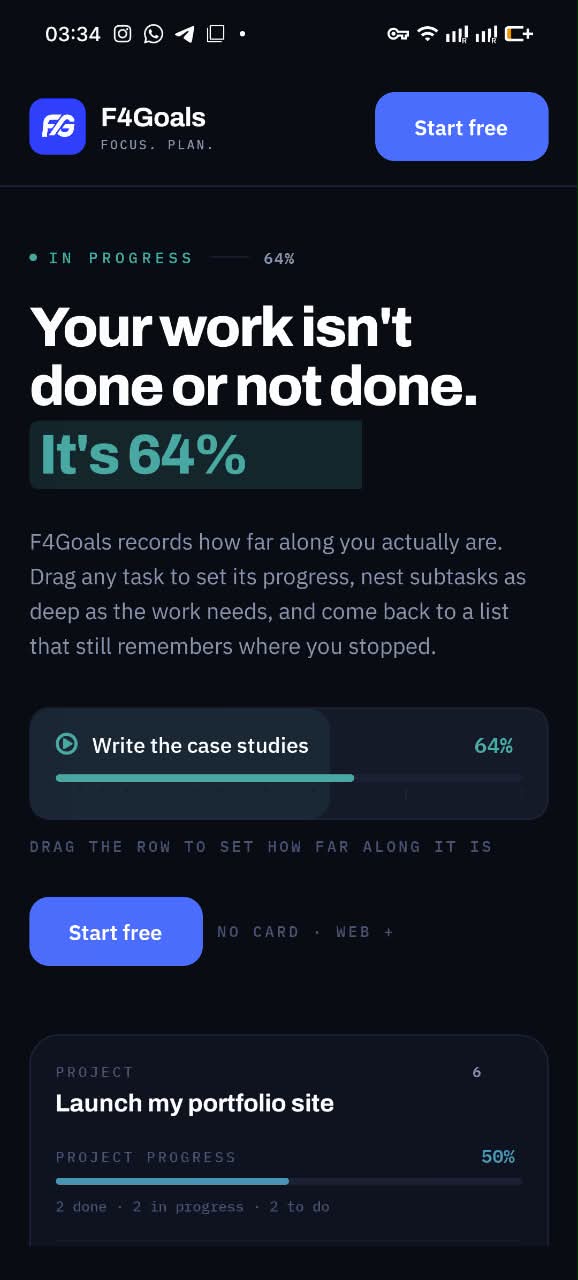
Drag a task to set its progress
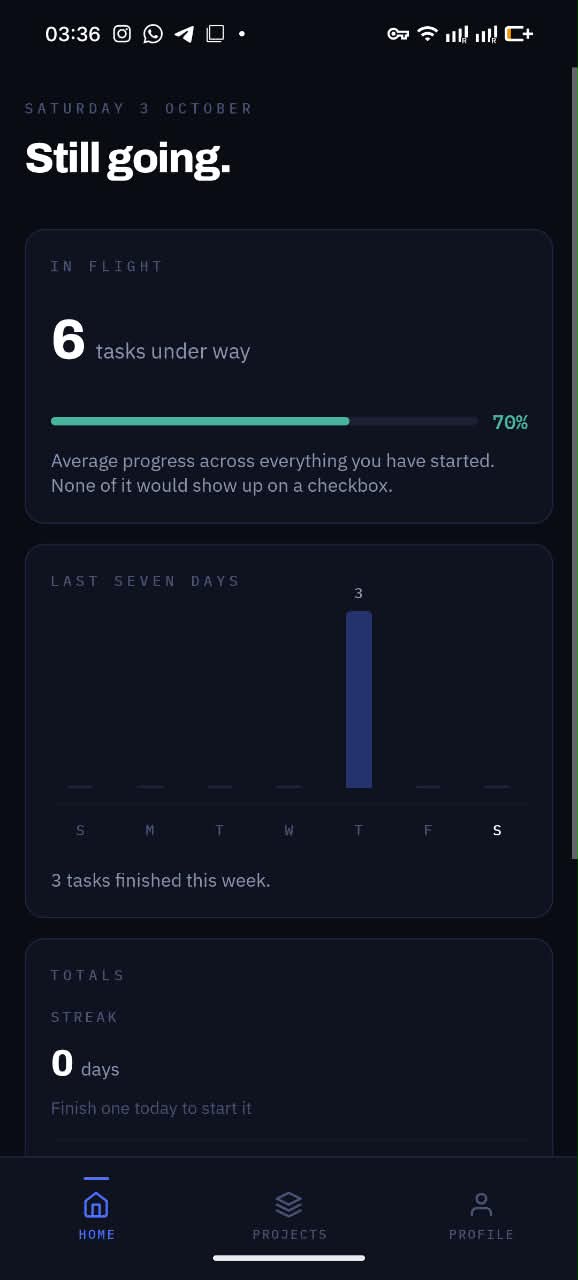
Your week at a glance
Questions
Can I drag a task to make it a subtask?
Yes. Drag the task and drop it under another task. It becomes a subtask of that task, and its own subtasks come with it.
Can I move a task to another project by dragging?
Yes. Drag the task into the other project and it moves there, along with its subtasks and progress.
Does drag and drop work on Android?
Yes. Grab the handle at the left of a task and drag it. The same gesture works with a mouse in the web app.
Will dragging a task change its progress?
No. Progress is set by sliding a task sideways and is kept when you move it.
Try it on your own work.
F4Goals is free. Create a project, add a few subtasks and slide the first one.
No card · Web + Android