Feature · Progress
A task manager with a progress percentage on every task.
Work that spans days is rarely “not started” or “finished”. F4Goals lets you slide any task to the exact point you have reached, and shows the project percentage that results.
No card · Web + Android

The problem with done and not done
A checkbox has two states. Write a report for three days and, for all three, the app says you have done nothing. The only moment it changes is the last one. That makes a to-do list a poor record of long work, and a poor source of motivation, because effort that has not crossed the finish line does not show up anywhere.
F4Goals gives every task a progress value from 0% to 100%. A task you are halfway through looks halfway through, and so does the project it belongs to.
How to set progress
Slide the task row sideways. The percentage follows your finger or cursor, and the bar behind the task fills to match. Release and it stays put. There is no dialog, no number to type and no separate screen.
Slide a task to any value from 0% to 100%.
The colour moves from blue towards green as the task fills, so a glance at the list shows what is nearly done.
A task at 100% counts as complete; a task above zero counts as in progress.
Progress is stored on the task and syncs between web and Android.
Progress at a glance: writing a report
Quarterly report
55%
Collect the data
100%
Write the findings
60%
Draw the charts
30%
Review and send
0%
Three days of work, none of it “done” yet, and all of it visible.
A project percentage that updates itself
Each project shows a percentage that is the average of every task and subtask inside it, so sliding a single subtask moves the project. You do not maintain a second spreadsheet of percentages: set the individual tasks honestly and the project total takes care of itself.
This is also what makes it a project progress tracker rather than only a to-do list. Open the Projects screen and every project carries its own percentage, so you can see which one is stalled and which one is nearly there.
Setting honest numbers
A percentage is only useful if it is truthful. A few habits help. Break a task down until a leaf is small enough that you can tell whether it is a quarter, half or three quarters done. Move the slider when you stop for the day, not only when you finish. And do not leave a task at 90% for a week: if the last tenth keeps not happening, that is the task to break down.
You are the only person who sees the numbers, so there is nothing to perform. They exist to tell you where you actually are.
Where the numbers show up
The home screen shows the work in flight with its average progress, a daily completion streak, and a chart of the tasks you finished over the last seven days. Partial progress feeds all of it, so the picture is of real work, not only of ticked boxes.
F4Goals on Android
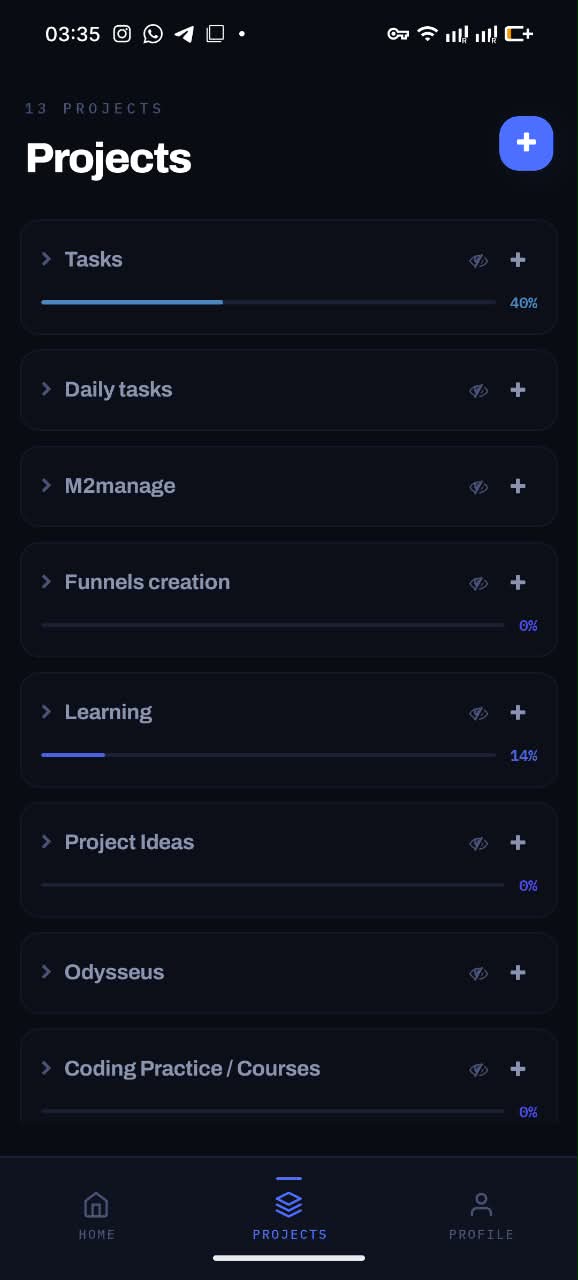
Projects with live progress
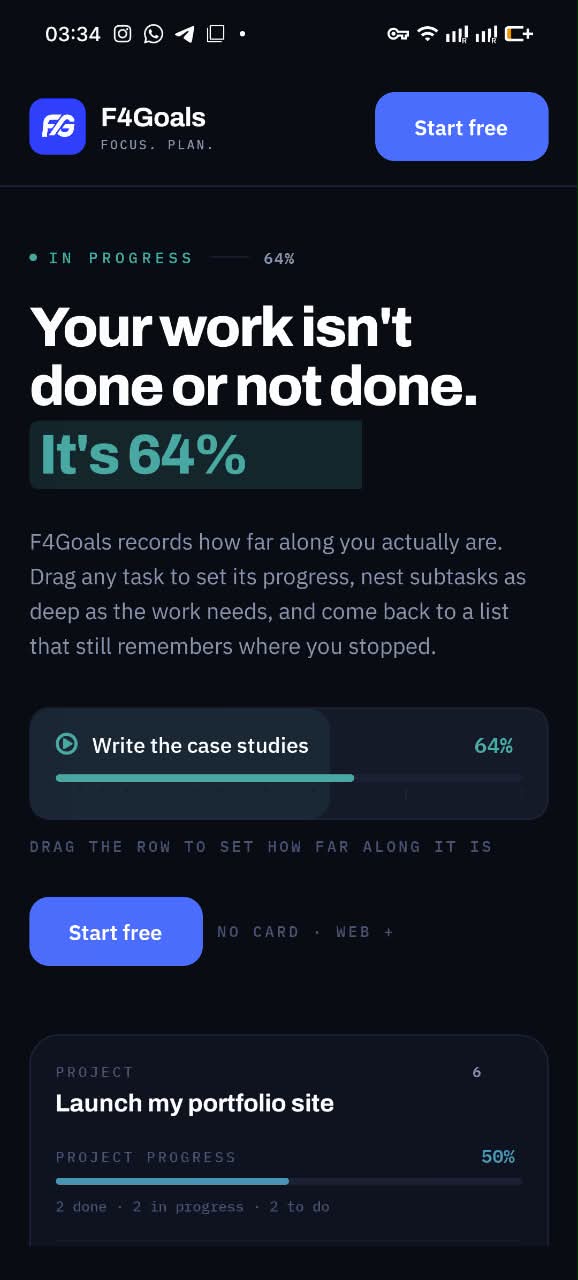
Drag a task to set its progress
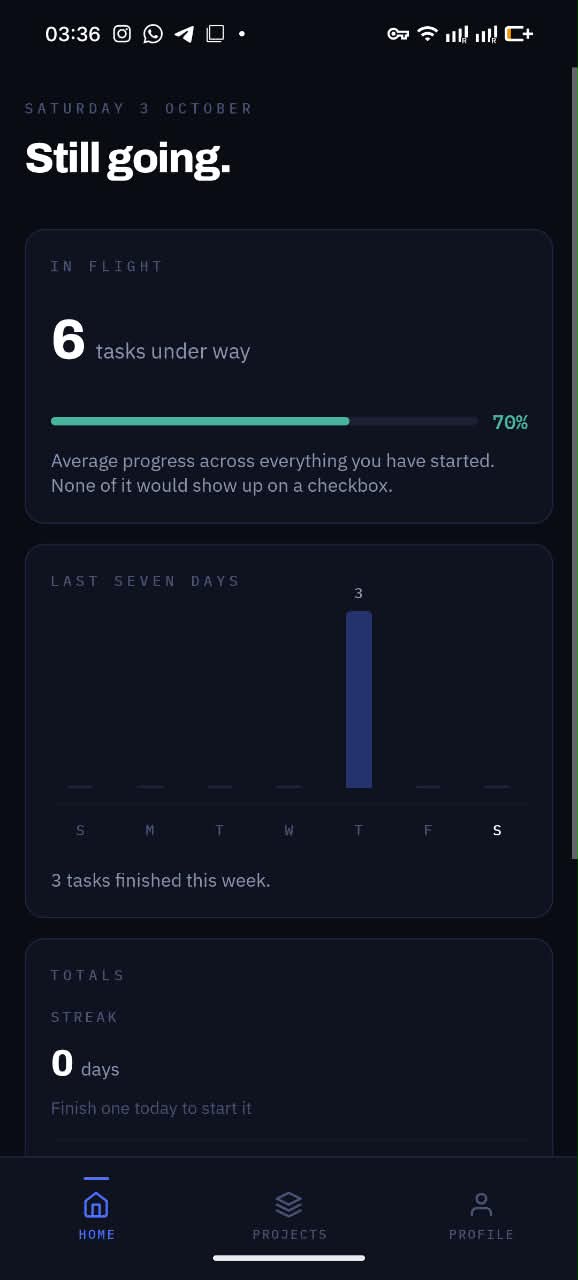
Your week at a glance
Questions
Can I track task progress as a percentage in F4Goals?
Yes. Every task has a progress value from 0% to 100% that you set by sliding the task row. Each project shows a percentage that averages every task and subtask inside it.
Is progress calculated automatically or do I set it?
You set it on each task by sliding. The project percentage is then calculated for you as the average across the tasks inside it, so you only enter the numbers once, where the work happens.
Does the progress sync to my phone?
Yes. Progress is saved with the task and syncs between the web app and the Android app once you are signed in.
Is there a progress bar for a whole project?
Yes. Each project shows its own percentage and bar on the Projects screen, based on the tasks and subtasks inside it.
Try it on your own work.
F4Goals is free. Create a project, add a few subtasks and slide the first one.
No card · Web + Android